Running a local LLM on a Jetson Orin Nano
Why run an LLM locally?
Running a Large Language Model on your own hardware gives you full control over your data, zero API costs, and the ability to use AI offline. The Nvidia Jetson Orin Nano is a compact yet powerful device perfect for this use case.
What you’ll need:
- Nvidia Jetson Orin Nano (8GB RAM recommended)
- MicroSD card (64GB+) or NVMe SSD
- Power supply (5V 4A or higher)
- Internet connection for initial setup
Setup
Ollama is the easiest way to run LLMs locally. It handles model downloads, quantization, and provides a simple API.
Install Ollama with this command:
curl -fsSL https://ollama.com/install.sh | sh
Verify the installation:
ollama --version
Configure for Jetson’s hardware:
The Jetson Orin Nano has limited VRAM (~4GB shared with system). To avoid memory errors, configure Ollama to run on CPU:
sudo systemctl edit ollama
Add the following:
[Service]
Environment="OLLAMA_NUM_GPU=0"
Apply changes:
sudo systemctl daemon-reload
sudo systemctl restart ollama
While the Jetson has CUDA support, its shared memory architecture means large models won’t fit in VRAM. Running on CPU with 8GB RAM gives you more flexibility to run larger models.
Running your first model
With 8GB RAM, here’s what you can run:
| Model | Parameters | RAM Usage | Speed |
|---|---|---|---|
| Qwen2.5:0.5b | 0.5B | ~1GB | Very fast |
| Qwen2.5:1.5b | 1.5B | ~2GB | Fast |
| Phi-3 Mini | 3.8B | ~3GB | Good |
| Llama 3.2:3b | 3B | ~3GB | Good |
| Mistral 7B Q4 | 7B | ~5GB | Slow |
For the best balance between speed and quality, I recommend Qwen2.5:1.5b.
Download and run:
ollama pull qwen2.5:1.5b
Then run it:
ollama run qwen2.5:1.5b
You should see an interactive prompt where you can start chatting with your local LLM.
Going further
Add a Web UI:
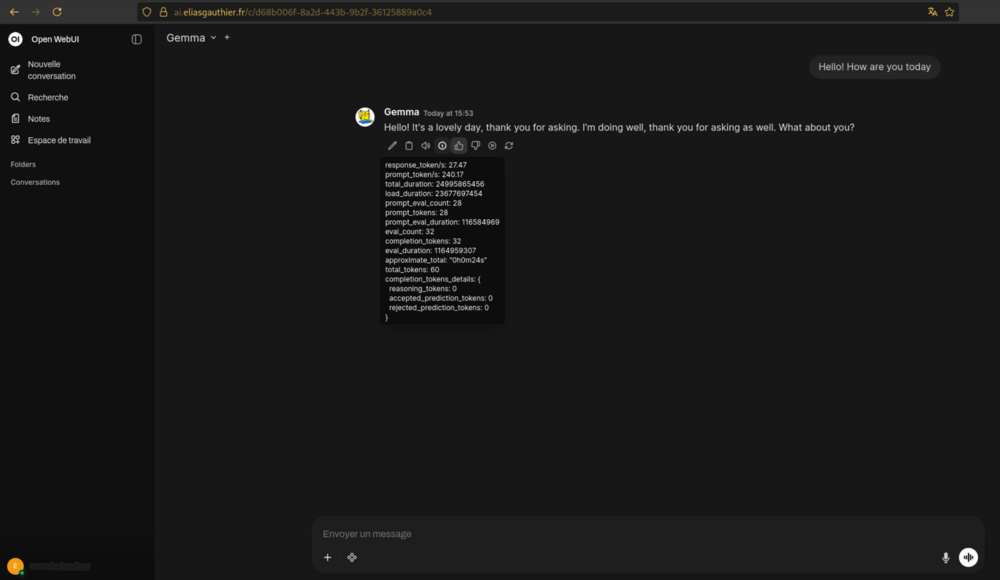
For a better experience, you can add Open WebUI, a ChatGPT-like interface for Ollama:
docker run -d -p 3000:8080 \
  --add-host=host.docker.internal:host-gateway \
  -v open-webui:/app/backend/data \
  --name open-webui \
  --restart always \
  ghcr.io/open-webui/open-webui:main
Once running, access the web interface at http://localhost:3000.
Optimize for speed:
To get faster responses on limited hardware, configure a system prompt that encourages conciseness:
You are a concise assistant. Answer briefly. No filler.
Get to the point. Use lists only when necessary. No repetition.
This reduces the number of tokens generated, speeding up response times significantly.
Access remotely:
With cloudflared tunnels, you can access your WebUI from any network! I personally created a subdomain ai.eliasgauthier.fr (requires login credentials, which I can provide upon request).
Troubleshooting
CUDA out of memory error
500: llama runner process has terminated: error loading model: unable to allocate CUDA0 buffer
This means the model is too large for GPU memory. Either use a smaller model or force CPU mode as described above.
Model runs too slowly
Try a smaller quantized model:
ollama pull qwen2.5:0.5b
Ollama service not starting
Check logs:
sudo journalctl -u ollama -f
Conclusion
The Jetson Orin Nano is a capable device for running small to medium LLMs locally. While you won’t match the speed of cloud APIs or high-end GPUs, having a private, always-available AI assistant at home is worth the trade-off.
For best results, stick to models under 4B parameters in Q4 quantization. The Qwen2.5 1.5B model offers an excellent balance of speed and capability for everyday use.